Migrating your data from portable builds on Windows#
Starting in December 2025 Luanti switched its distribution format
from portable builds (ZIP archive) to a self-extracting installer.
This guide will explain how you can copy your data (games, worlds, mods, …) from a previous portable folder to the to the new location.
1. Run the new Luanti version#
First, make sure you have downloaded the installer
called luanti-5.XX.X.exe and run it at least once.
Navigate directly to the “About” tab and click on the “Open user data directory” button:
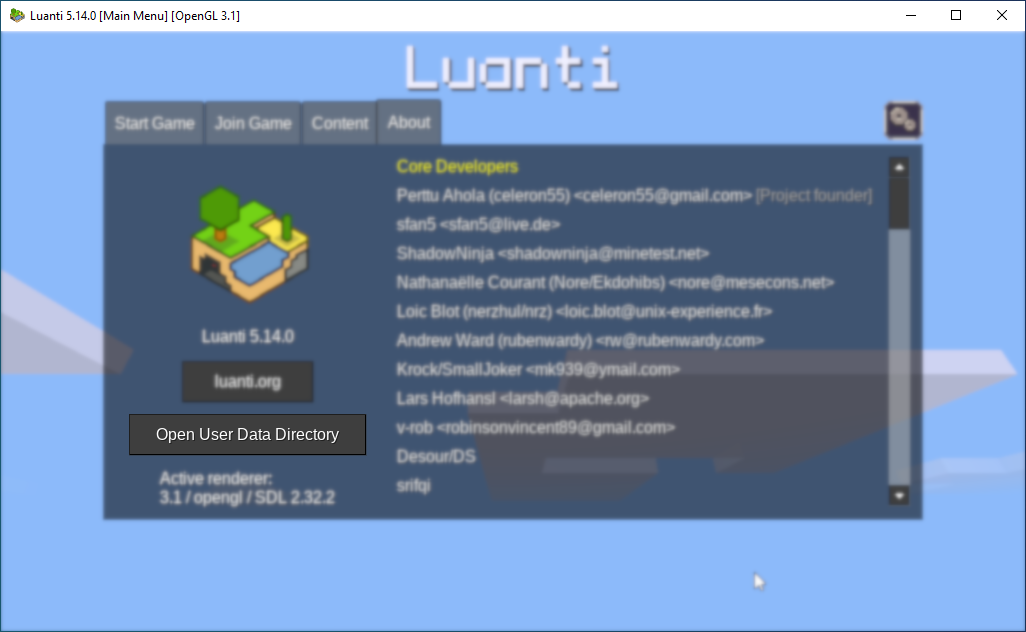
You will arrive at the following folder:
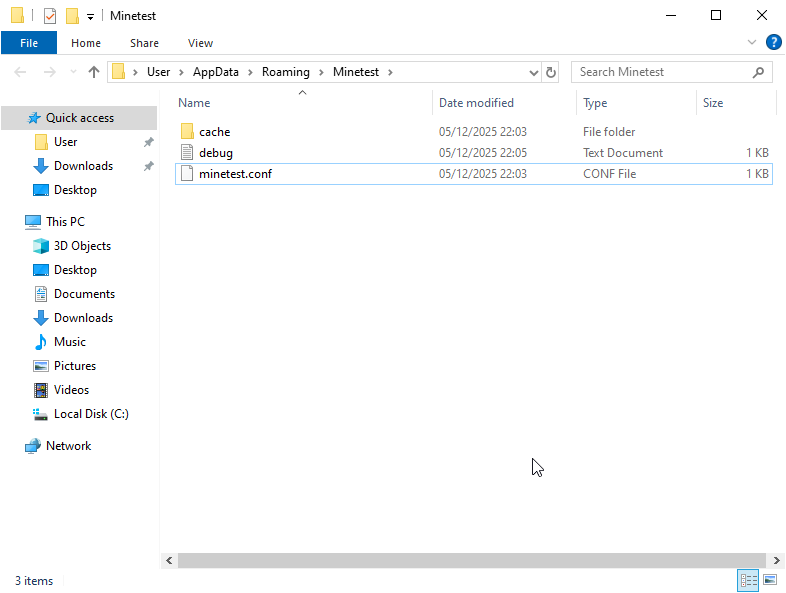
Keep the file browser open and close all Luanti windows.
Next, select all elements and delete them as we will be overwriting them.
2. Copy files#
Use the file browser to navigate to the portable installation you have used before.
Select the “cache”, “games”, “mod_data”, “mods”, “worlds” folders and the “minetest.conf” file and press Ctrl+C to copy them.
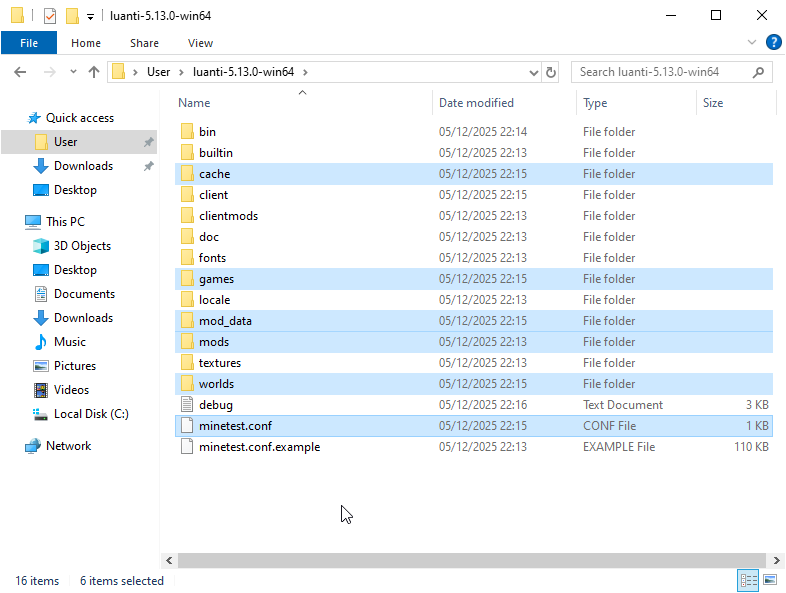
Switch back to the new, empty user data folder (opened previously) and press Ctrl+V to insert the files.
3. Finished#
You will also find a shortcut for Luanti on the desktop and in the start menu.
As soon as you launch Luanti again you should see that your games and worlds have been transferred over successfully.
Note: You will have to re-install any previous texture packs or set favorite servers by hand.