Getting Your IP Address#
When hosting from home it is necessary to know both your external and internal IP and understanding the difference between the two. The guide will reference these addresses multiple times later so it is good to know what they are for you.
External IP#
Your external IP address is the Internet facing address you have. It is what websites see and what people will need to connect to when joining your server. In order to find your external IP address you can simply search “what is my ip address” on DuckDuckGo and it should show it:

Internal IP#
Your internal IP address is the address that your computer has on the local network. It is the address the computer uses when communicating to other computers on the local network as well as the router. See the following instructions for each platform:
Windows:
- Open a command prompt: Press Win + X, type cmd.exe and press Enter.
- Type
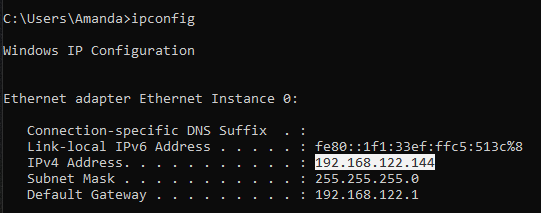
ipconfig - Depending on your setup, you may have multiple network connections that show up. What you should focus on is an Ethernet or Wi-Fi connection, depending on how you have your computer connected to the router.
Your internal IP will be the address listed as “IPv4 Address”, and should (but may not necessarily) begin with 192.168.X.X.
Linux:
- Open a terminal.
- Type
ip addr - Look for “inet” near “wlan0”, “eth0” or something similar in the resulting output. It’s usually somewhere within 192.168.0.0/16 but may be in another block.
macOS:
- Open a terminal.
- Type
netstat -nr - Figure it out
Checking for CGNAT#
Carrier-grade NAT (CGNAT) is a technique used by some ISPs where many customers will share one single IP address, in order to conserve the amount of IPv4 addresses the ISP owns. As mentioned above this also means that you will be unable to host a server from home without additional steps, as it won’t be directly accessible from the wider Internet. So if you are going to be hosting from home you should first check whether you are behind CGNAT.
(Instructions on how to check for CGNAT are taken from this blog post)
Follow the steps for your operating system to run a traceroute:
Windows:
- Open a command prompt: Press Win + X, type cmd.exe and press Enter.
- Type
tracert <external IP>.
Linux:
- Open a terminal.
- Type
traceroute <external IP>(requires traceroute to be installed)
Analysing the traceroute#
Whether you are behind CGNAT or not can be determined based on the amount of hops the traceroute will return. If the traceroute returns a single hop and then finishes then you are not behind CGNAT:
traceroute to 78.71.XX.XX (78.71.XX.XX), 30 hops max, 60 byte packets
 1  78-71-XX-XX.example.org (78.71.XX.XX)  0.567 ms  0.643 ms  0.702 ms
However if there are multiple hops to the external IP, especially ones within the 100.64.0.0 to 100.127.255.255 range that are reserved for CGNAT, or if the traceroute doesn’t complete at all then you are behind CGNAT and will not be able to host a publicly available server without extra steps.
If you are behind CGNAT#
First of all, try contacting your ISP or check their website. Some ISPs are willing to move you onto a bare IP (may also be referred to as a “public” IP) if requested, by contacting them directly or through a page on their website. If asked for the motivation, say that you want to host a game server.
If they are unwilling to do this, or require you to upgrade to a business plan to provide this service, you will need to rent a VPS/dedicated in the cloud to host your server or to create a tunnel to your home network.